How to Use the Built-In Screen Recorder on iPhone
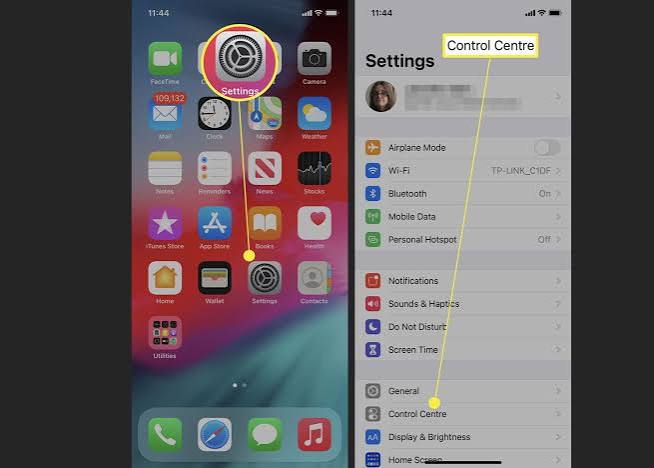
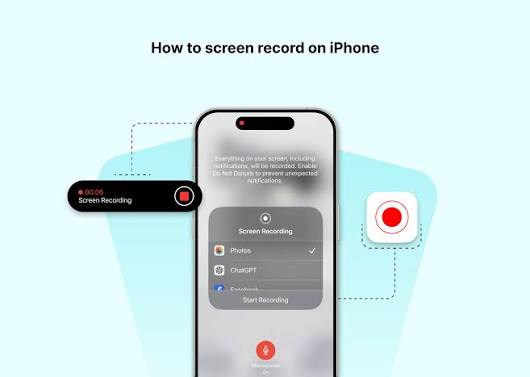
Your iPhone includes a built-in screen recording feature that works seamlessly with iOS, requiring no additional downloads or purchases. To use it, you first need to make sure the Screen Recording button is available in your Control Center. Open the Settings app and navigate to Control Center, or simply swipe down from the top-right corner of your screen to open Control Center and look for the circular record button . If you do not see it, press and hold on the Control Center background, tap Add a Control, search for Screen Recording, and add it to your controls . Once the button is in place, you can start recording by swiping down from the top-right corner and tapping the gray Record button. A three-second countdown will begin, giving you time to close Control Center and navigate to the screen you want to capture . During the countdown, you can prepare whatever content you plan to record. When the countdown ends, recording begins immediately, and the Record button turns red with a timer appearing at the top of your screen. To stop recording, tap the red status bar indicator at the top of your screen and confirm by tapping Stop, or open Control Center again and tap the red Record button . Your recording is automatically saved to the Photos app, where you can view, edit, trim, or share it just like any other video . The built-in recorder captures everything that appears on your screen, including app activity, notifications, and any sounds your phone produces. This makes it perfect for creating tutorials, documenting issues, or sharing gameplay moments without needing any extra software .