Tools

Adobe QR Code Generator: How to Create and Customize QR Codes

Need a QR code for your website, your contact details, or a flyer? Adobe can get you there. Scanning is the easy part: someone holds up their phone, the camera reads the little square, and boom, they’re on your page. The real value is on the design side. I’d say a QR code is most useful when it sits on something people actually hold, like a business card, a poster, or the box your product ships in. Print one on a plain page and it’s just a square. Put it on a well-made piece and it turns into a doorway. Don’t just stick it in a corner, though. Give it some thought. Match it to your brand colors, add a short line like “Scan for the menu” so people know what they’re getting, and leave some white space around it. Restaurants do this well, sending people to a menu or a booking form. If you’re a freelancer, point it to your portfolio. Planning a party? Link your invite. Before you choose a generator, ask yourself a few things. Will you want to see how many people scan it? Might the link change next month? If so, go with a dynamic code, because a static one is stuck forever once it’s printed. A heads-up about Adobe: its apps don’t all do the same thing with QR codes, and the features keep changing, so look at what your version offers first. Can’t find a built-in option? Use any free online generator, save the image, and drop it into your design. Last thing, and please don’t skip it: scan the code yourself before printing. Seriously. Nothing’s worse than 500 flyers pointing to a dead link.

visit https://www.adobe.com/express/

Adobe QR Code Generator: How to Create and Customize QR Codes

What Is an Adobe QR Code Generator?

So what’s an “Adobe QR code generator”? Basically, it’s any way of making a QR code and getting it into your Adobe projects. Start with Adobe Express, since that’s where the QR feature lives. Photoshop, Illustrator, and InDesign can still take the finished code once you’ve made it. After that, it works for pretty much anything: a poster, a presentation, a business document, a marketing campaign. Someone points their phone at it and a website or landing page opens. That’s it.

How to Create a QR Code Using Adobe Tools

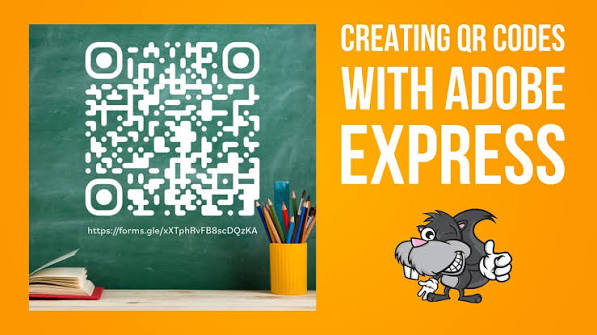
A QR code is only as good as the link behind it, so sort that out first. Decide where you want people to end up, whether that’s your site, a specific product, or your portfolio, and copy the exact URL. Look it over once for typos. Then run it through a QR generator and save the image to your computer. Next, open Adobe Express (or whichever Adobe app you like) and start your project. Drop the QR image in, put it somewhere people will actually see it, and add a short nudge like “Scan to learn more” or “Visit our website.” Feel free to fiddle with the design around it. Just don’t stretch or squish the code itself, or it may stop scanning. A few things make a big difference. Keep strong contrast between the code and the background, so dark on light is the safest bet. Leave some empty space around the edges whether that’s PDF for print or PNG for online If it opens the wrong page, you’ll want to find out now, not after 200 copies are printed.

How to Create a QR Code Using Adobe Tools — Adobe QR Code Generator: How to Create and Customize QR Codes